
Create the licence and download the module
The Downloads page of the customer account lists every purchased module. The website domain is set here, the licence key is created here, and the installation package is downloaded from here.
A purchased module is activated either from the customer account or from the module's own configuration page. Both routes end the same way: the module runs with an active licence on the given website.
In the customer account the licence and the download are in one place. On the module configuration page the order details activate it, without copying a key.
The Downloads page of the customer account lists every purchased module. The website domain is set here, the licence key is created here, and the installation package is downloaded from here.
On the configuration page of an installed module — while there is no key — the Activate module by order form appears. After the order reference and the order date the module fetches the licence by itself.
Seven steps from sign-in to a working module.
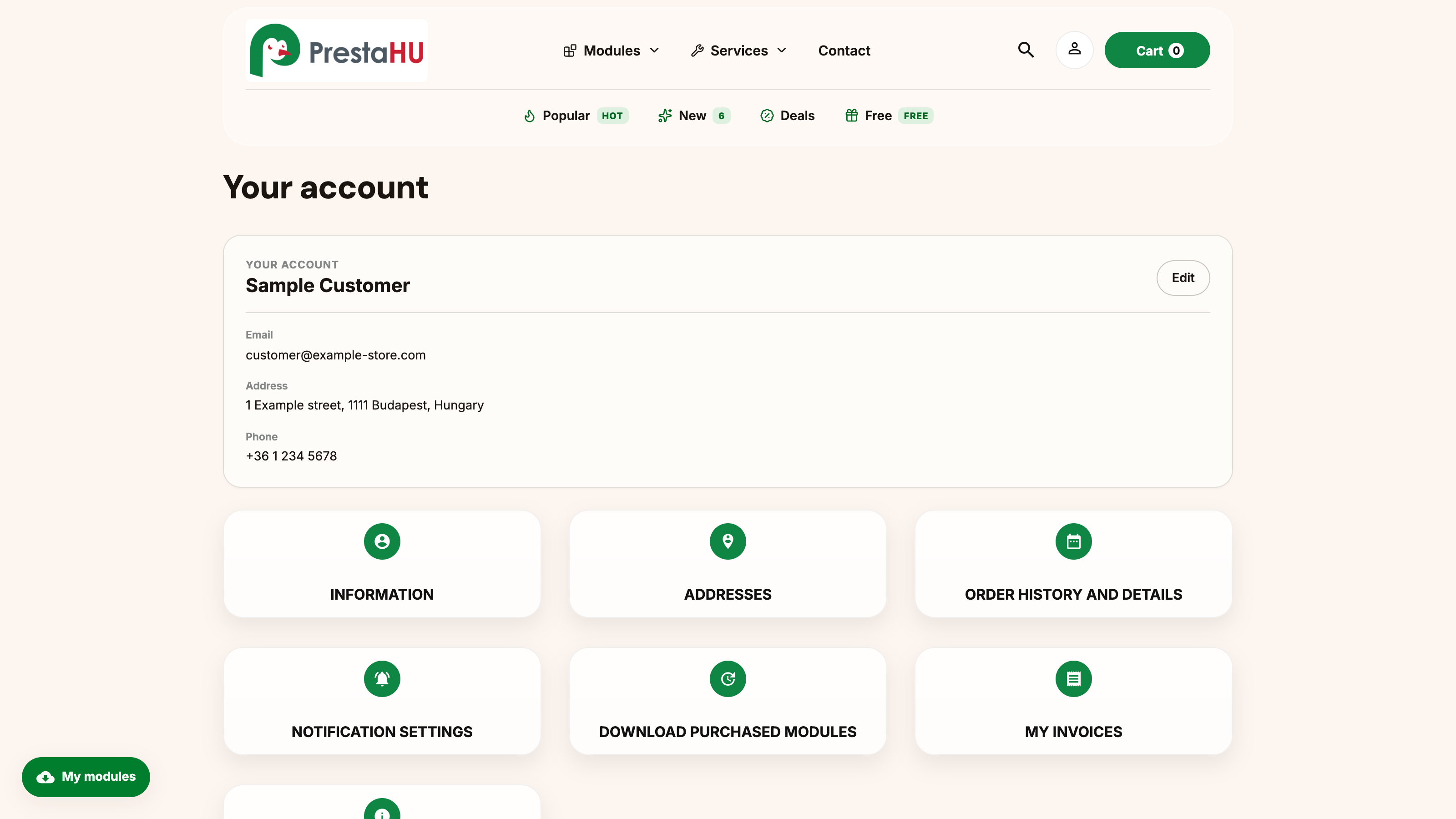
Sign in from the header of prestahu.com; the My account page opens with the tiles that belong to the purchase.
prestahu.com → Sign in
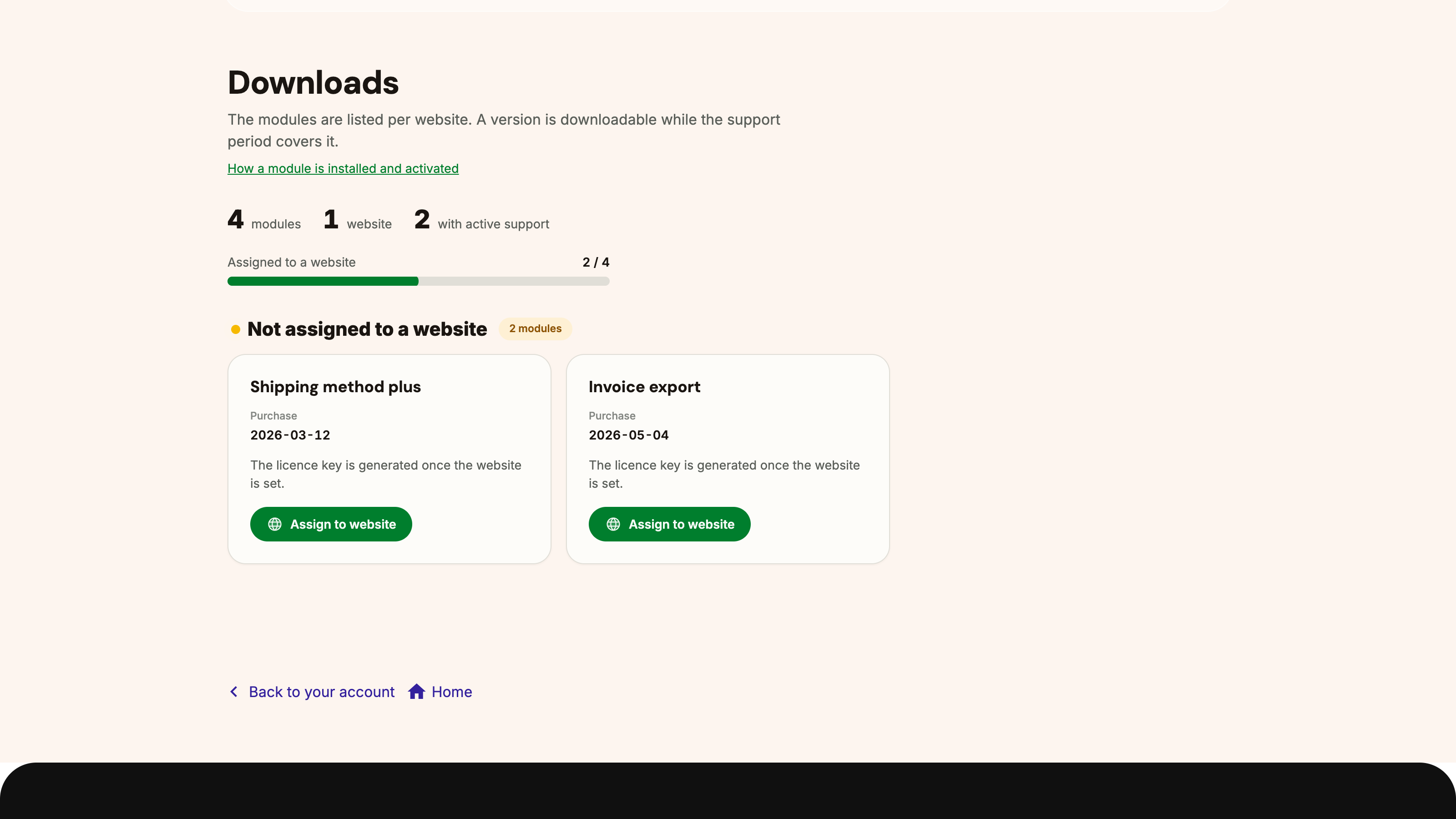
The Download purchased modules tile opens the Downloads page. Modules are grouped by website, and licences without a website sit in a separate block.
My account → Download purchased modules
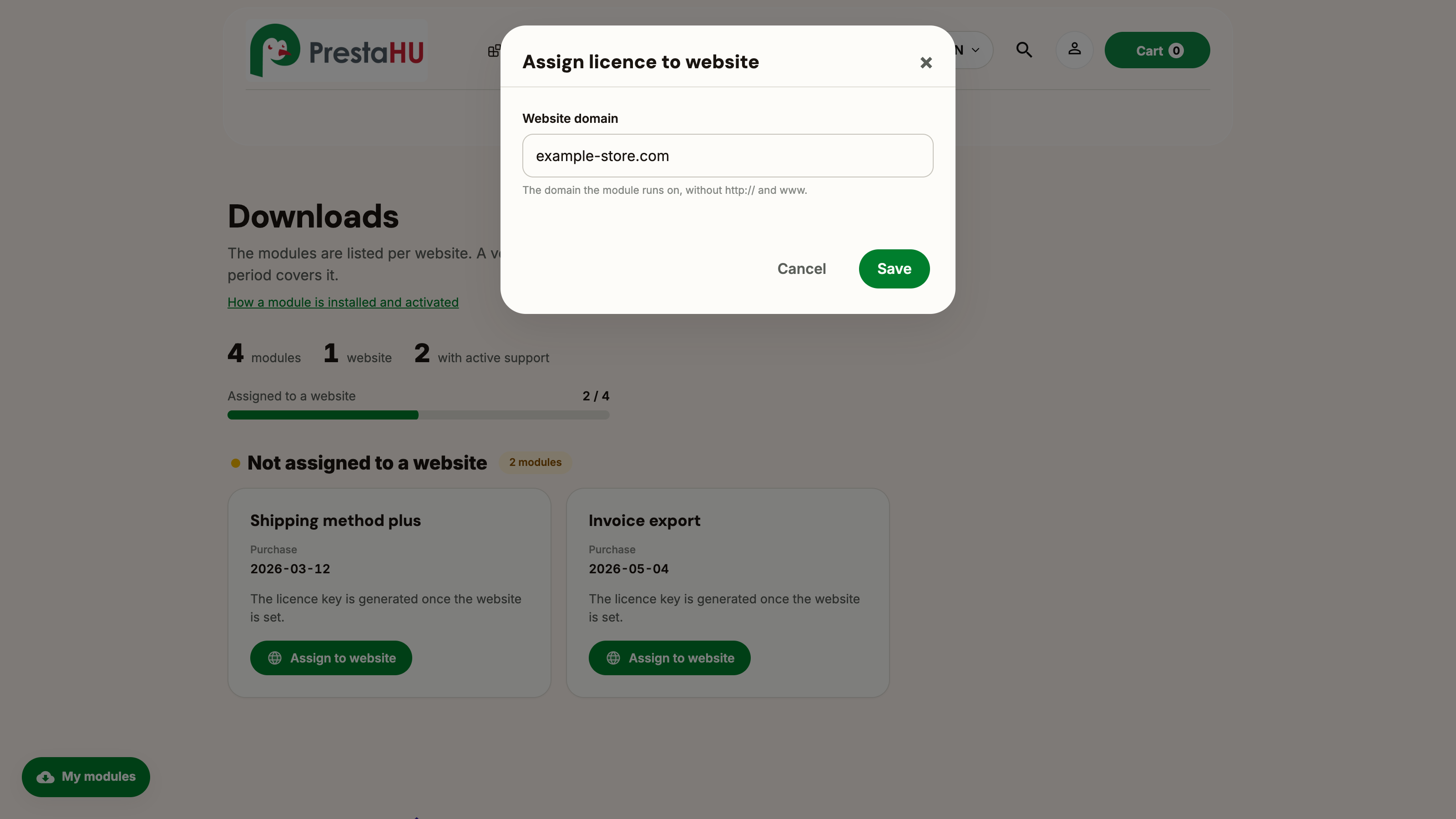
An unassigned module shows the Assign to website button. The domain goes in without http:// and www., for example example.com. The licence key is created at this point.
Assign to website → Save
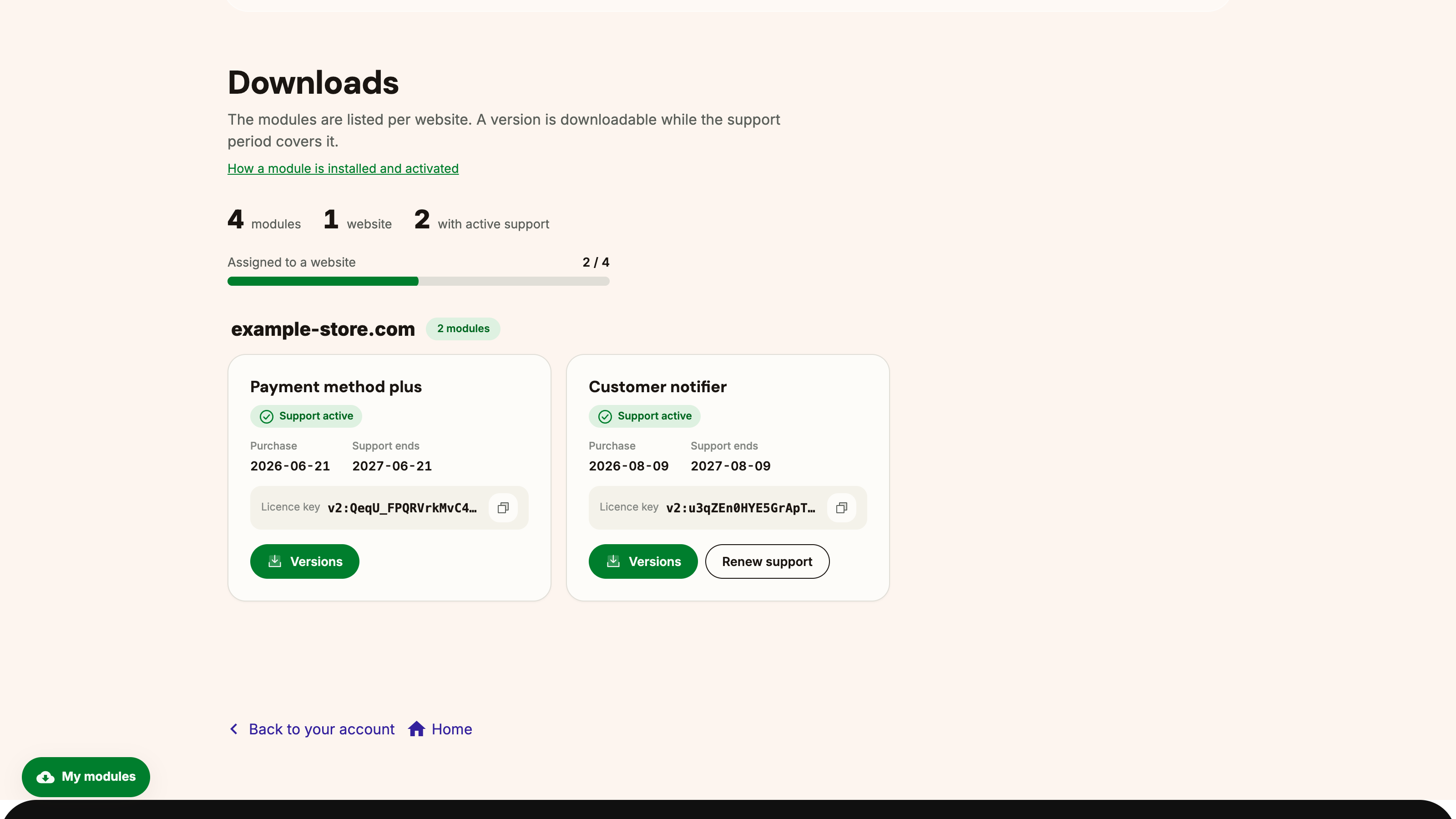
After the assignment the key appears on the module card, and the icon next to it copies the key to the clipboard.
The Versions button opens the Available versions list: version, release date, PrestaShop compatibility and the download. Every listed version is available while support is active.
Versions → Available versions
In the shop back office the ZIP goes up under Modules, then Upload a module; after installation the module appears in the list.
Modules → Upload a moduleOn the module Configure page the copied key goes into the Enter licence key manually field, then Save. The module is active on the assigned domain.
module Configure → Enter licence key manually → SaveIf the module is already installed, the order details activate it without copying a key.
Installation is the same as in the first route: the ZIP comes from the Downloads page and goes up under Modules → Upload a module.
Modules → Upload a moduleOn the module Configure page, while there is no valid licence, the Activate module by order form is shown.
Modules → the module → ConfigureThe Order reference is in the order confirmation e-mail and on the Order history page. The Order date is the day the order was placed.
Activate module by orderThe Check button shows which product and which licence the order belongs to. Nothing changes yet at this point.
CheckConfirm and activate sets the licence to the domain the module runs on, and the module becomes active immediately.
Confirm and activateThe key can also be typed in: fill the Enter licence key manually field, then Save. The result is the same as the order-based activation.
Enter licence key manually → SaveThe key belongs to the domain that was given. Another website needs another licence.
Versions released during the support period are downloadable. Releases from before the expiry stay available afterwards.
The installation package is downloaded from the Downloads page of the customer account, so the current release always arrives.
Purchased modules, licence keys and the release list in one place.